
Stop copying and pasting meta tags one URL at a time. If you’re an SEO professional, digital marketer, or agency managing multiple websites, you’ve probably spent hours manually checking title tags and meta descriptions across dozens (or hundreds) of pages. There’s a better way.
In this guide, I’ll show you how to build a free, automated meta tag extractor that works directly inside Google Sheets using Google Apps Script. No external tools, no subscriptions, no complicated setup.
Why You Need This
As SEO professionals, we regularly need to audit meta tags for:
- Client audits – Quickly assess current meta tag optimization
- Competitor analysis – See how competitors are optimizing their pages
- Migration projects – Document existing meta tags before website changes
- Content optimization – Identify pages with missing or duplicate meta descriptions
- Reporting – Show clients exactly what needs improvement
Manual extraction is tedious. Paid tools like Screaming Frog are great, but overkill for quick checks. This Google Sheets solution gives you instant access to meta tag data without leaving your spreadsheet.
What You’ll Build
By the end of this tutorial, you’ll have a custom Google Sheets tool that:
✅ Extracts title tags and meta descriptions from any URL
✅ Processes hundreds of URLs in batch
✅ Color-codes results (green = success, red = error)
✅ Works directly in your spreadsheet with a custom menu
✅ Handles errors gracefully and shows HTTP status codes
✅ Decodes HTML entities properly
Prerequisites
- A Google account (free)
- A Google Sheet with URLs you want to analyze
- 10 minutes to set this up
That’s it. No coding experience required.
Step-by-Step Setup
Step 1: Prepare Your Google Sheet
- Open your Google Sheet or create a new one
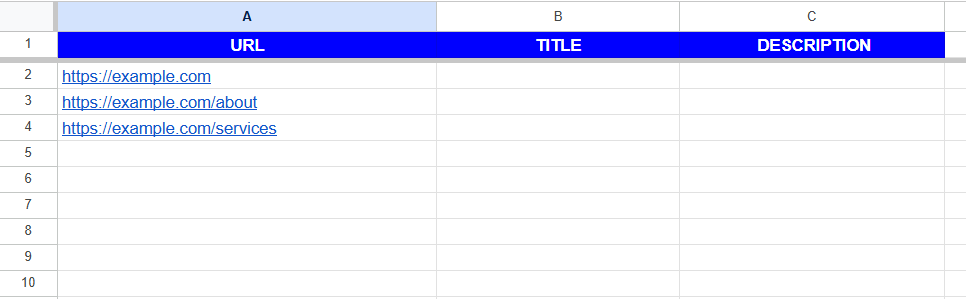
- Add your URLs in Column A (starting from A2 if you have a header in A1)
- Your sheet should look something like this:
Step 2: Open the Script Editor
- In your Google Sheet, click Extensions → Apps Script
- You’ll see a blank script editor
- Delete any default code that appears
- Keep this window open – we’ll paste our code here
Step 3: Add the Meta Tag Extractor Script
Copy and paste this complete script into the Apps Script editor:
/**
* Meta Tag Extractor for Google Sheets
* Fetches title tags and meta descriptions from URLs
* Author: Ankit Chauhan
*/
function onOpen() {
// Create custom menu
const ui = SpreadsheetApp.getUi();
ui.createMenu('🔍 Meta Tag Extractor')
.addItem('Extract Meta Tags', 'extractMetaTags')
.addItem('Extract Selected Rows', 'extractSelectedRows')
.addSeparator()
.addItem('Clear Results', 'clearResults')
.addToUi();
}
/**
* Main function to extract meta tags from all URLs
*/
function extractMetaTags() {
const sheet = SpreadsheetApp.getActiveSheet();
const ui = SpreadsheetApp.getUi();
// Ask user which column contains URLs
const response = ui.prompt(
'Extract Meta Tags',
'Which column contains your URLs? (e.g., A, B, C)',
ui.ButtonSet.OK_CANCEL
);
if (response.getSelectedButton() != ui.Button.OK) {
return;
}
const urlColumn = response.getResponseText().toUpperCase();
const urlColumnIndex = urlColumn.charCodeAt(0) - 64; // A=1, B=2, etc.
// Ask where to start (skip header row?)
const startRowResponse = ui.prompt(
'Start Row',
'Which row to start from? (e.g., 2 to skip header)',
ui.ButtonSet.OK_CANCEL
);
if (startRowResponse.getSelectedButton() != ui.Button.OK) {
return;
}
const startRow = parseInt(startRowResponse.getResponseText()) || 2;
// Get all URLs
const lastRow = sheet.getLastRow();
if (lastRow < startRow) {
ui.alert('No data found in the specified range.');
return;
}
const urls = sheet.getRange(startRow, urlColumnIndex, lastRow - startRow + 1, 1).getValues();
// Set up result columns (next to URL column)
const titleColumn = urlColumnIndex + 1;
const descColumn = urlColumnIndex + 2;
const statusColumn = urlColumnIndex + 3;
// Add headers if starting at row 1
if (startRow === 1) {
sheet.getRange(1, titleColumn).setValue('Title Tag');
sheet.getRange(1, descColumn).setValue('Meta Description');
sheet.getRange(1, statusColumn).setValue('Status');
}
// Process each URL
let processed = 0;
let errors = 0;
urls.forEach((row, index) => {
const url = row[0];
const currentRow = startRow + index;
if (!url || url.toString().trim() === '') {
return; // Skip empty rows
}
try {
// Show progress
SpreadsheetApp.flush();
// Fetch and extract
const result = fetchMetaTags(url.toString().trim());
// Write results
sheet.getRange(currentRow, titleColumn).setValue(result.title);
sheet.getRange(currentRow, descColumn).setValue(result.description);
sheet.getRange(currentRow, statusColumn).setValue(result.status);
// Color code status
const statusCell = sheet.getRange(currentRow, statusColumn);
if (result.status === 'Success') {
statusCell.setBackground('#d9ead3'); // Light green
} else {
statusCell.setBackground('#f4cccc'); // Light red
errors++;
}
processed++;
// Be polite to servers - add small delay
Utilities.sleep(500);
} catch (error) {
sheet.getRange(currentRow, titleColumn).setValue('Error');
sheet.getRange(currentRow, descColumn).setValue(error.toString());
sheet.getRange(currentRow, statusColumn).setValue('Failed');
sheet.getRange(currentRow, statusColumn).setBackground('#f4cccc');
errors++;
}
});
ui.alert(
'Complete!',
`Processed: ${processed} URLs\nErrors: ${errors}`,
ui.ButtonSet.OK
);
}
/**
* Extract meta tags from selected rows only
*/
function extractSelectedRows() {
const sheet = SpreadsheetApp.getActiveSheet();
const ui = SpreadsheetApp.getUi();
const selection = sheet.getActiveRange();
const startRow = selection.getRow();
const numRows = selection.getNumRows();
const urlColumnIndex = selection.getColumn();
const titleColumn = urlColumnIndex + 1;
const descColumn = urlColumnIndex + 2;
const statusColumn = urlColumnIndex + 3;
for (let i = 0; i < numRows; i++) {
const currentRow = startRow + i;
const url = sheet.getRange(currentRow, urlColumnIndex).getValue();
if (!url || url.toString().trim() === '') {
continue;
}
try {
const result = fetchMetaTags(url.toString().trim());
sheet.getRange(currentRow, titleColumn).setValue(result.title);
sheet.getRange(currentRow, descColumn).setValue(result.description);
sheet.getRange(currentRow, statusColumn).setValue(result.status);
const statusCell = sheet.getRange(currentRow, statusColumn);
statusCell.setBackground(result.status === 'Success' ? '#d9ead3' : '#f4cccc');
Utilities.sleep(500);
} catch (error) {
sheet.getRange(currentRow, titleColumn).setValue('Error');
sheet.getRange(currentRow, descColumn).setValue(error.toString());
sheet.getRange(currentRow, statusColumn).setValue('Failed');
}
}
ui.alert('Selected rows processed!');
}
/**
* Core function to fetch and parse meta tags
*/
function fetchMetaTags(url) {
try {
// Validate URL
if (!url.match(/^https?:\/\//i)) {
url = 'https://' + url;
}
// Fetch the page
const response = UrlFetchApp.fetch(url, {
'muteHttpExceptions': true,
'followRedirects': true,
'validateHttpsCertificates': false,
'headers': {
'User-Agent': 'Mozilla/5.0 (Windows NT 10.0; Win64; x64) AppleWebKit/537.36 (KHTML, like Gecko) Chrome/91.0.4472.124 Safari/537.36'
}
});
const statusCode = response.getResponseCode();
if (statusCode !== 200) {
return {
title: 'N/A',
description: 'N/A',
status: `HTTP ${statusCode}`
};
}
const html = response.getContentText();
// Extract title tag
let title = 'No title found';
const titleMatch = html.match(/<title[^>]*>(.*?)<\/title>/i);
if (titleMatch && titleMatch[1]) {
title = titleMatch[1].trim();
// Decode HTML entities
title = decodeHtmlEntities(title);
}
// Extract meta description
let description = 'No description found';
const metaDescMatch = html.match(/<meta\s+name=["']description["']\s+content=["'](.*?)["']/i);
if (metaDescMatch && metaDescMatch[1]) {
description = metaDescMatch[1].trim();
description = decodeHtmlEntities(description);
} else {
// Try alternative format
const altMetaMatch = html.match(/<meta\s+content=["'](.*?)["']\s+name=["']description["']/i);
if (altMetaMatch && altMetaMatch[1]) {
description = altMetaMatch[1].trim();
description = decodeHtmlEntities(description);
}
}
return {
title: title,
description: description,
status: 'Success'
};
} catch (error) {
return {
title: 'Error',
description: error.toString(),
status: 'Failed'
};
}
}
/**
* Decode HTML entities
*/
function decodeHtmlEntities(text) {
return text
.replace(/&/g, '&')
.replace(/</g, '<')
.replace(/>/g, '>')
.replace(/"/g, '"')
.replace(/'/g, "'")
.replace(/ /g, ' ')
.replace(/&#(\d+);/g, (match, dec) => String.fromCharCode(dec));
}
/**
* Clear all results
*/
function clearResults() {
const sheet = SpreadsheetApp.getActiveSheet();
const ui = SpreadsheetApp.getUi();
const response = ui.alert(
'Clear Results',
'This will clear all Title, Description, and Status columns. Continue?',
ui.ButtonSet.YES_NO
);
if (response === ui.Button.YES) {
const lastRow = sheet.getLastRow();
const lastCol = sheet.getLastColumn();
// Clear formatting and content from result columns
for (let col = 2; col <= lastCol; col++) {
sheet.getRange(2, col, lastRow - 1, 1).clearContent();
sheet.getRange(2, col, lastRow - 1, 1).setBackground(null);
}
ui.alert('Results cleared!');
}
}
Step 4: Save and Name Your Project
- Click the 💾 Save icon (or press Ctrl+S / Cmd+S)
- Give it a name: “Meta Tag Extractor”
- Close the Apps Script editor
Step 5: Refresh and Authorize
- Go back to your Google Sheet and refresh the page (F5 or Cmd+R)
- You should now see a new menu item: 🔍 Meta Tag Extractor
- Click 🔍 Meta Tag Extractor → Extract Meta Tags
- Google will ask you to authorize the script:
- Click Review Permissions
- Select your Google account
- Click Advanced → Go to Meta Tag Extractor (unsafe)
- Click Allow
Don’t worry – Google flags all custom scripts as “unsafe” by default. This is your own code running in your own spreadsheet.
How to Use Your Meta Tag Extractor
Method 1: Extract All URLs
- Click 🔍 Meta Tag Extractor → Extract Meta Tags
- Enter the column letter containing your URLs (e.g., “A”)
- Enter the row to start from (e.g., “2” to skip headers)
- Click OK and watch the magic happen!
The script will add three columns next to your URLs:
- Title Tag – The page’s
<title>content - Meta Description – The meta description content
- Status – Success (green) or error code (red)
Method 2: Extract Selected URLs Only
Need to check just a few URLs or retry failed ones?
- Select the URL cells you want to extract
- Click 🔍 Meta Tag Extractor → Extract Selected Rows
- Results appear instantly in adjacent columns
Method 3: Clear Results
Want to start over?
- Click 🔍 Meta Tag Extractor → Clear Results
- Confirm, and all extracted data is removed
Understanding the Results
Success (Green)
When a URL is successfully fetched, you’ll see:
- Title Tag: The actual
<title>content from the page - Meta Description: The meta description content
- Status: “Success” with green background
Errors (Red)
If something goes wrong, you’ll see:
- HTTP 404: Page not found
- HTTP 403: Access forbidden
- HTTP 500: Server error
- Failed: Connection timeout or other error
Real-World Use Cases
1. SEO Audit Workflow
1. Export URLs from sitemap or crawl tool
2. Paste into Google Sheet
3. Run Meta Tag Extractor
4. Add columns for:
   - Title length (=LEN(B2))
   - Description length (=LEN(C2))
   - Optimization notes
5. Share with client or team
2. Competitor Analysis
1. List competitor page URLs
2. Extract their meta tags
3. Compare to your own pages
4. Identify opportunities and gaps
3. Content Migration
1. Document old site meta tags
2. Create new site structure
3. Map old tags to new pages
4. Verify after migration
Advanced Customizations
Want to extend this script? Here are some ideas:
Add Character Count
Add this after the title/description columns:
// After extracting tags, add length formulas
const titleLengthCol = titleColumn + 3;
const descLengthCol = titleColumn + 4;

sheet.getRange(currentRow, titleLengthCol).setFormula(`=LEN(${sheet.getRange(currentRow, titleColumn).getA1Notation()})`);
sheet.getRange(currentRow, descLengthCol).setFormula(`=LEN(${sheet.getRange(currentRow, descColumn).getA1Notation()})`);
Extract Open Graph Tags
Add this to the fetchMetaTags function:
// Extract OG Title
let ogTitle = 'No OG title';
const ogTitleMatch = html.match(/<meta\s+property=["']og:title["']\s+content=["'](.*?)["']/i);
if (ogTitleMatch && ogTitleMatch[1]) {
  ogTitle = ogTitleMatch[1].trim();
}

// Extract OG Description
let ogDescription = 'No OG description';
const ogDescMatch = html.match(/<meta\s+property=["']og:description["']\s+content=["'](.*?)["']/i);
if (ogDescMatch && ogDescMatch[1]) {
  ogDescription = ogDescMatch[1].trim();
}

return {
  title: title,
  description: description,
  ogTitle: ogTitle,
  ogDescription: ogDescription,
  status: 'Success'
};
Add H1 Tag Extraction
// Extract H1
let h1 = 'No H1 found';
const h1Match = html.match(/<h1[^>]*>(.*?)<\/h1>/i);
if (h1Match && h1Match[1]) {
  h1 = h1Match[1].trim().replace(/<[^>]*>/g, ''); // Strip HTML tags
  h1 = decodeHtmlEntities(h1);
}
Troubleshooting Common Issues
“Script execution exceeded maximum time”
This happens with very large URL lists. Solutions:
- Process URLs in smaller batches (50-100 at a time)
- Use the “Extract Selected Rows” feature
- Increase the sleep delay:
Utilities.sleep(1000);
“Access Denied” or “403 Forbidden”
Some websites block automated requests. Try:
- Adding more realistic User-Agent headers
- Using a different IP (run from different location)
- Manually checking if the site requires login
Missing Meta Descriptions
If the script shows “No description found”:
- The page genuinely has no meta description
- The meta tag uses a different format
- Content is JavaScript-rendered (this script only reads static HTML)
Character Encoding Issues
If you see strange characters:
- The page uses a non-UTF-8 encoding
- Add more entity decoders to the
decodeHtmlEntitiesfunction - Or manually fix in the sheet after extraction
Performance Tips
- Batch processing: Process 50-100 URLs at a time
- Use filters: Only extract what you need with “Selected Rows”
- Save versions: Duplicate your sheet before major extractions
- Rate limiting: The built-in 500ms delay is polite. Don’t remove it.
- Cache results: Keep successful extractions, only retry errors
Comparison to Other Tools
| Feature | This Script | Screaming Frog | SEMrush | Ahrefs |
|---|---|---|---|---|
| Cost | Free | $259/year | $139.95/mo | $129/mo |
| URLs | Unlimited* | 500 (free) | Varies | Varies |
| Setup | 10 minutes | Download + install | Signup | Signup |
| Location | Google Sheets | Desktop app | Web | Web |
| Customizable | Yes (code) | Limited | No | No |
| Sharing | Easy (Sheets) | Export required | Dashboard | Dashboard |
*Subject to Google Apps Script quotas (typically 20,000 UrlFetch calls per day)
Conclusion
You now have a powerful, free meta tag extraction tool that lives right in your Google Sheets. No subscriptions, no downloads, no complexity.
This script is perfect for:
- Quick SEO audits
- Client reports
- Competitive analysis
- Pre-migration documentation
- Training junior SEO staff
The best part? You can customize it endlessly. Extract H1s, canonical tags, schema markup, open graph tags – whatever you need.
Next Steps
- Save this script in your Google Sheet library
- Create a template with pre-formatted columns and formulas
- Share with your team so everyone can use it
- Extend the functionality based on your specific needs
Want to take it further? Here are some advanced projects:
- Schedule automated runs using Google Apps Script triggers
- Email results automatically to stakeholders
- Integrate with APIs to push data to other tools
- Build a full SEO auditor that checks more on-page elements
Have questions or improvements? Contact me. I’d love to see how you customize this for your workflow!
Found this useful? Share it with your SEO and digital marketing colleagues. Let’s make everyone’s life a little easier.